
Best overall: Freedom. Best for strict desktop blocking: Cold Turkey Blocker. Best built-in option for Apple users: Screen Time. This 2026 guide compares the best distraction blocker apps for solopreneurs by where they work, how they enforce limits, and what happens when you try to bypass them.
- Freedom leads the best distraction blocker apps for solopreneurs who need blocking across computers and phones.
- Cold Turkey Blocker suits desktop work when easily dismissed restrictions are not enough.
- SelfControl fits Mac users who want a timed website block that stays active until the timer expires.
- LeechBlock NG suits browser-specific rules; Apple Screen Time suits built-in app limits.
- Método AS is a productivity reset, not a blocking app; use it alongside technical restrictions.
Why this matters
A distraction blocker answers a narrow question: which websites or apps should be unavailable while you work? It does not decide which client proposal deserves attention, whether a task matters, or when you should stop accepting new commitments.
For solopreneurs, that distinction separates useful restrictions from another productivity system to maintain. Block the escape route, then define the work you will do instead. Otherwise, you can spend an uninterrupted morning on the wrong task.
Método AS offers a 21-day productivity reset with a PDF guide, decision template, and audio reset. It belongs beside this comparison as a planning resource, not inside the ranking as a blocking app.
What makes the best distraction blocker apps?
Use these criteria to judge a blocker before installing it. The strongest choice matches your actual distraction pattern, not the longest feature list.
- Device coverage: Block distractions where you reach for them. A desktop-only restriction does not address a separate phone habit.
- Enforcement: Distinguish a reminder you can dismiss from a restriction you deliberately lock for a work session.
- Scheduling: Match recurring limits to your work routine instead of rebuilding the same block every morning.
- Blocking scope: Website blocking, application blocking, and device-level limits solve different problems.
- Work exceptions: Keep necessary client portals, research sources, and communication tools accessible.
- Setup burden: Choose rules you can understand and maintain without turning blocker configuration into another project.
Enforcement matters most when you repeatedly override your own decisions. Coverage matters most when distractions move between devices. Neither replaces a clear task.
Distraction blockers at a glance
These 2026 recommendations occupy different use-case slots. Read the limitation column first: it identifies where each option stops being the right tool.
| Rank | Option | Best for | Standout feature | Key limitation |
|---|---|---|---|---|
| 1 | Freedom | Blocking across computers and phones | Cross-device blocking sessions | Necessary work access needs careful exceptions |
| 2 | Cold Turkey Blocker | Firm desktop restrictions | Locked website and application blocks | Desktop focus does not cover a separate phone |
| 3 | SelfControl | A committed website-blocking session on Mac | Timed blocks that resist early cancellation | Mac-only and narrower than a cross-device system |
| 4 | LeechBlock NG | Detailed browser rules | Website schedules and time allowances | Browser-extension boundaries leave other routes open |
| 5 | Apple Screen Time | Built-in limits on Apple devices | App Limits and Downtime | Self-managed limits can be overridden |
1. Freedom: best distraction blocker for cross-device work
Freedom blocks distracting websites and apps across supported computers and mobile devices. Its central advantage is coverage: you can address the laptop browser and the phone you reach for when the browser becomes unavailable.
That makes Freedom the default recommendation for a solopreneur whose distractions travel between screens. Set the blocking list around actual escape routes, while preserving the tools needed for the task.
Freedom pros:
- Covers desktop and mobile workflows.
- Supports scheduled blocking sessions.
- Offers a Locked Mode for stronger session enforcement.
Freedom cons:
- Broad blocking lists can interrupt legitimate research or client work.
- Cross-device setup requires attention to each device's permissions and configuration.
Best for: Solopreneurs who alternate between a computer and phone during work.
Before committing to a locked session, check the websites your next task requires. A client login, document viewer, or payment workflow belongs on that list if blocking it would stop the work itself.
Verdict: Buy Freedom for cross-device blocking; configure work exceptions before increasing enforcement.
2. Cold Turkey Blocker: best for firm desktop boundaries
Cold Turkey Blocker focuses on Windows and Mac computers, with website and application blocking. Its locked-block approach suits people who keep dismissing softer restrictions and returning to the same desktop distractions.
The relevant distinction is commitment, not punishment. Decide the permitted work environment before the session, rather than renegotiating it whenever you feel bored.
Cold Turkey Blocker pros:
- Addresses both distracting websites and desktop applications.
- Supports scheduled blocks.
- Provides stronger commitment through locked restrictions.
Cold Turkey Blocker cons:
- Desktop blocking leaves a separate phone habit unresolved.
- Strict rules create friction when you block something necessary for work.
Best for: Windows or Mac users whose distraction problem stays mainly on their computer.
Keep the first block narrow. Blocking an entire research platform because you sometimes browse it aimlessly creates a conflict when a client task genuinely requires it. Identify the specific distraction before locking the boundary.
Verdict: Buy Cold Turkey Blocker when firm desktop enforcement matters more than phone coverage.
3. SelfControl: best for committed website blocking on Mac
SelfControl is a Mac application that blocks access to specified websites for a timer you choose. Once a session starts, the block remains active until the timer expires, including after restarting the computer or deleting the application.
This is the most straightforward choice in the ranking for a deliberate, time-limited commitment. It is also a poor fit when you need to change your mind halfway through the session.
SelfControl pros:
- Centers on a clear website-blocking task.
- Makes the session duration an explicit decision.
- Resists common attempts to cancel a running block early.
SelfControl cons:
- Works on Mac rather than across your desktop and phone.
- An incorrectly blocked website stays unavailable for the session.
Best for: Mac users who know exactly which websites to block and can commit to the timer.
Start with a proposed 25-minute work session, not an entire workday. That is a setup recommendation, not a claim about the ideal concentration span: the point is to check your blocklist before making a longer commitment.
Verdict: Buy into SelfControl's approach only when an uncancellable website-blocking session matches your work.
4. LeechBlock NG: best for browser-specific rules
LeechBlock NG is a browser extension for restricting selected websites through schedules and time allowances. It suits work that needs more nuanced browsing rules than a single all-or-nothing session.
For example, you can distinguish a website you want unavailable during writing from one you want to limit rather than exclude. That flexibility belongs at the browser level, not across every application on your computer.
LeechBlock NG pros:
- Supports different rules for different sets of websites.
- Combines scheduled restrictions with browsing time allowances.
- Keeps configuration close to the browser where the distraction occurs.
LeechBlock NG cons:
- Does not replace device-wide application blocking.
- Another browser or changes to the extension can undermine the boundary.
Best for: Solopreneurs who need detailed website rules inside a supported browser.
Choose this option when the browser is genuinely the problem. If you routinely leave the browser for a distracting desktop application, adding more website rules will not close that route.
Verdict: Buy into LeechBlock NG for browser control; skip it as your only tool for device-wide distractions.
5. Apple Screen Time: best for built-in Apple device limits
Apple Screen Time provides App Limits and Downtime on Apple devices. It is a sensible starting point when you want to restrict app use without introducing a separate blocking application.
The central limitation is self-enforcement. When you control the settings and can override the restriction, the system functions as a boundary you must still choose to respect.
Apple Screen Time pros:
- Uses controls built into Apple's operating systems.
- Supports app limits and scheduled downtime.
- Offers a way to start with existing device controls.
Apple Screen Time cons:
- Does not provide a general solution for non-Apple devices.
- Self-managed restrictions are easier to negotiate away than a locked session.
Best for: Apple users who respond to moderate boundaries and want to start with built-in controls.
Check what happens when a limit appears. If you dismiss it without thinking, changing the duration alone does not address the problem; move to a tool whose enforcement matches your behavior.
Verdict: Buy into Apple Screen Time as a starting point; skip it as your sole safeguard if you repeatedly override limits.
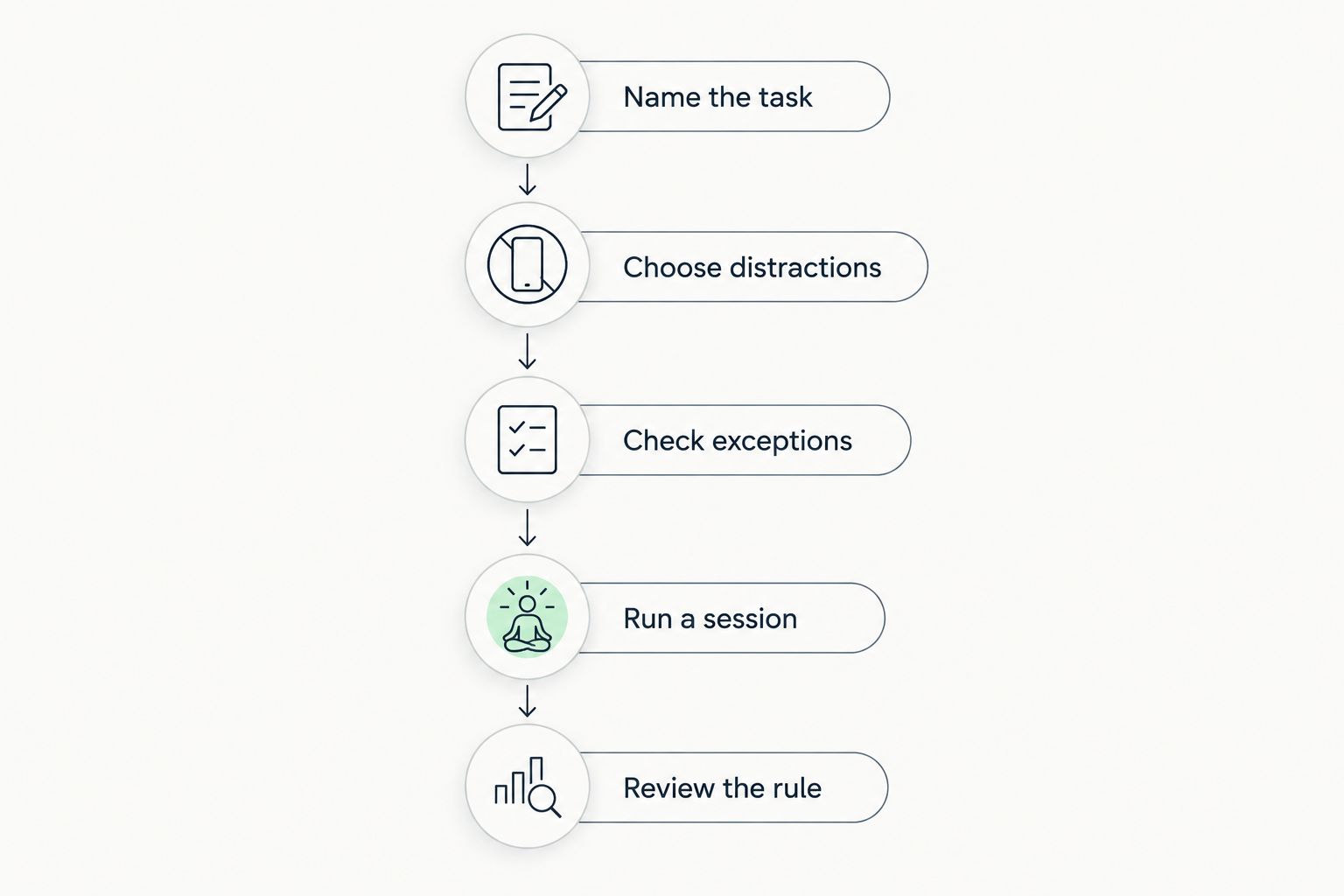
How to configure your blocker without blocking your business
Use this sequence for your first setup in 2026. It keeps the restriction attached to a real task rather than an abstract promise to become more productive.
Name the task
Write the deliverable before opening the blocker: draft the proposal, reconcile the invoices, or outline the client presentation. Avoid goals such as work harder or catch up. Those give you no clear place to direct your attention.
Choose distractions
List the websites or apps you actually open to escape that task. Do not start by blocking every communication tool. A solopreneur still needs a way to handle work that genuinely requires those tools.
Check exceptions
Open the resources your deliverable requires before activating a strict block. Confirm that authentication, reference material, and document access still work. A restriction should remove distractions, not make the assignment impossible.
Run a session
As a starting experiment, schedule 25 minutes of work followed by a 5-minute break. These are suggested trial durations, not performance benchmarks. Use a 60-minute session only after confirming that the task and permitted resources support it.
Review the rule
After the session, record what interrupted you and whether the blocker addressed it. Change the rule outside the next locked session. Do not weaken the boundary automatically just because the task became uncomfortable.
When a blocker is not the missing piece
A blocker restricts access. It does not supply a decision about what deserves your attention. If you close social media and immediately start reorganizing folders, the escape route has changed but the priority remains unresolved.
Método AS fits overwhelmed entrepreneurs who want a 21-day productivity reset alongside a distraction blocker. Its PDF guide, decision template, and audio reset give it a different role from the applications ranked above.
Método AS advantages:
- Brings a guide, decision template, and audio reset into one digital program.
- Addresses focus and mental clarity for overwhelmed entrepreneurs.
- Uses a defined 21-day format.
Método AS limitations:
- Is not a website or application blocker.
- Requires you to engage with the materials rather than relying on automatic restrictions.
Best for: Entrepreneurs who need a structured reset as well as technical boundaries. Keep the jobs separate: use a blocker to restrict access and a planning resource to work on your decisions.
How the ranking works
The 2026 ranking prioritizes device coverage, enforcement, scheduling, blocking scope, work exceptions, and setup burden. Freedom takes the default slot because cross-device blocking addresses a workflow that spans computers and phones.
The remaining options win narrower decisions: Cold Turkey Blocker for desktop commitment, SelfControl for a timed Mac website block, LeechBlock NG for browser rules, and Apple Screen Time for built-in limits. This is a workflow comparison, not a claim that one app produces measured productivity gains.
Which distraction blocker should you choose?
Choose Freedom if you want the default cross-device recommendation in 2026. Choose Cold Turkey Blocker if your problem is desktop access and you need firmer enforcement.
On Mac, choose SelfControl for a specific website-blocking session you will not cancel early. Choose LeechBlock NG for detailed browser rules, or Apple Screen Time when built-in limits are enough.
Start with one blocker and one clearly defined task. Adding overlapping restrictions before understanding the first setup creates more configuration decisions without clarifying the work.
FAQ
What's the best distraction blocker app for a solopreneur in 2026?
Freedom is the default recommendation for solopreneurs who need blocking across computers and phones. Choose a desktop-focused or browser-focused option when your distraction problem stays in that environment.
Is Cold Turkey Blocker better than Freedom?
Cold Turkey Blocker is the better fit for firm desktop restrictions; Freedom is the better fit for cross-device blocking. Choose by where distractions occur and how much enforcement you need.
Can I stop a SelfControl session early?
SelfControl is designed to keep its website block active until the timer expires. Restarting the Mac or deleting the application does not end the running block, so check the blocklist before starting.
Is LeechBlock NG enough to block all my distractions?
LeechBlock NG is enough only when your relevant distractions stay inside the browser it controls. It does not replace restrictions for separate desktop applications, other browsers, or your phone.
Should I use Apple Screen Time before installing another blocker?
Use Apple Screen Time first if built-in app limits match your needs and you respect them. Choose stronger session enforcement if you repeatedly override those limits.
Do distraction blockers stop procrastination?
Distraction blockers restrict access to selected distractions; they do not decide your priorities or complete the task. Pair the restriction with a specific deliverable and review whether you simply switch to another avoidance activity.
Is Método AS a distraction blocker app?
Método AS is a digital 21-day productivity reset, not a distraction blocker app. It includes a PDF guide, decision template, and audio reset for overwhelmed entrepreneurs seeking better focus and mental clarity.
One last thing
Do not measure a blocker by how many websites it blocks. Measure whether you finished the task you named before the session. An elaborate restriction that leaves your priorities vague is still an elaborate restriction.
For your next work session in 2026, write the deliverable first, preserve its necessary resources, and block the escape routes second. That order gives the application a clear job.